This camera manual
library is for reference
and historical purposes, all rights reserved.
This page is copyright© by
 ,
M. Butkus, N.J.
,
M. Butkus, N.J.
This page may not be sold or distributed without the
expressed permission of the producer
I have no connection with any camera
company.
If you find this manual useful,
how about a donation
of $3 to:
M. Butkus, 29 Lake Ave.,
High Bridge, NJ 08829-1701
and send your
e-mail address
so I can thank you.
Most other places would charge
you $7.50 for a electronic copy
or $18.00 for a hard to read Xerox copy.
This will help me to continue to host this site,
buy new manuals, and
pay their shipping costs.
It'll make you feel better, won't
it ?
If you use Pay Pal, use the link below.
Use
the above address for a check,
M.O. or cash. - use any credit card
To main camera
manual site
Click here for Ricoh Mirai 3 PDF version
made from HTML - Better printing
Ricoh
Mirai Zoom 3 Mode d'emploi
Ricoh
Mirai Zoom 3 Manual de Instrucciones
Ricoh
Mirai Zoom 3 Bedienungsanleitung
CONTENTS
|
Attaching the strap 15
Inserting the battery , 15
Power switch : 15
Checking the battery 15
Loading the film 16
Setting the film speed , 17
Holding your camera 17
Viewfinder 18
Zooming the lens 18
Auto-focus shooting 19
Pre-focus shooting 20
Rewinding the film (Auto reverse) 20
Flash photography 21
Auto backlight control/Auto fill flash 22
Using the self-timer 22
|
Flash modes 23
Red eye reduction mode , 24
Flash-off mode 25
Flash-on mode 25
Multi flash mode 25
Creative modes 26
Auto zoom mode : 26
Night/panoramic photography mode 27
Continuous shooting mode 27
TV mode 28
Electronic remote control socket 29
(Optional) Databack settings 29
Proper care of your camera 31
Major specifications 32
|
We are most gratified that you have selected a RICOH camera. Before using
your camera, please be sure to
read these instructions carefully. We suggest that you become familiar
with your new camera by shooting and processing at least one roll of film
before using your camera to record an important occasion.
LOCATING THE CONTROLS
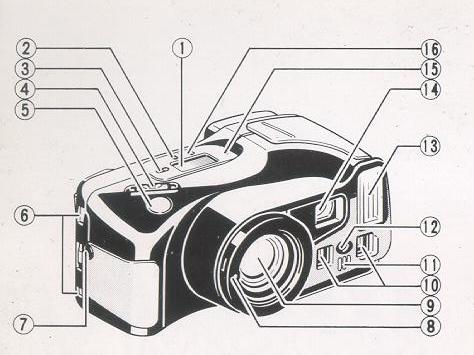 |
1. LCD Panel
2. Mode Button
3. Self-timer Button
4. Zoom Switch
5. Shutter Release Button
6. Strap Holder
7. Remote Control Socket
8. Teleconverter Interlock
9. Lens
10. Distance Measuring Windows
11. Self-timer LED
12. AF Auxiliary Light Window
13. Built-in Flash
14. Viewfinder Window
15. Manual Film Rewind Button
16. Flash Mode Button
|
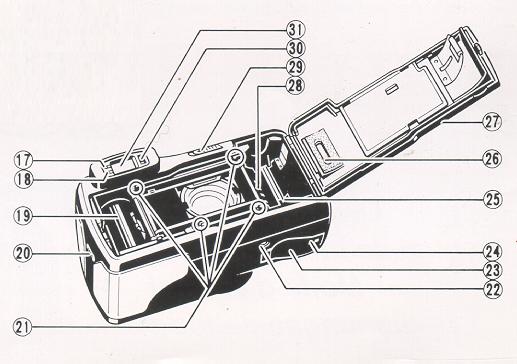 |
17. AF Monitor
18. Flash Monitor
19. Film Take-up Spool
20. Back Cover Latch
21. Film Guides
22. Tripod Socket
23. Battery Compartment Cover
24. Battery Compartment Cover Latch
25. Film Rewind Gear
26. Film Loaded Window
27. Back Cover
28. Film Cassette Chamber
29. Power Switch
30. Visibility Adjustment Lever
31. Viewfinder
|
ATTACHING THE STRAP
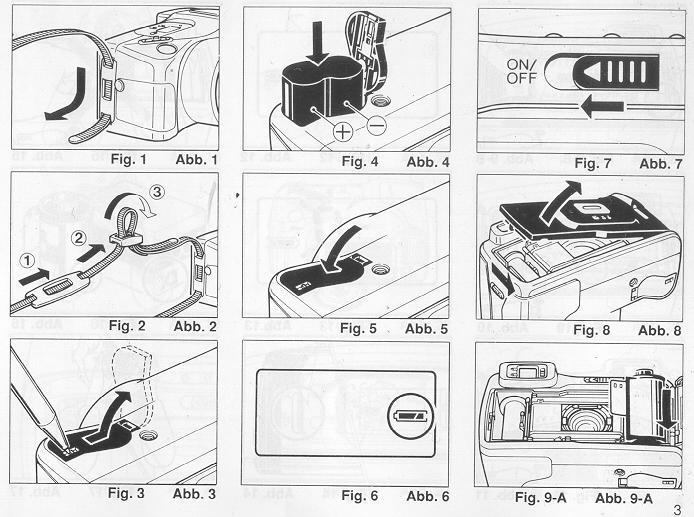
1. Run the end of the Strap down through the Strap Holder. (Fig. 1)
2. Then feed the end through the Shoulder Pad and the Buckle. (Fig. 2)
INSERTING THE BATTERY
The camera will not operate
unless the battery is in stalled. It is important to make sure that the battery
installed correctly.
1. Use a pen to push the Battery Compartment Cover
Latch in the direction of the arrow and pull open the cover. (Fig. 3)
2. Insert the recommended 6 volt lithium battery, contact end first, checking
that the + and - on the battery are aligned according to polarity diagram inside
the battery compartment. (Fig. 4)
3. Close the Battery Compartment Cover
by pushing it in the direction of the arrow until it locks firmly in place.
(Fig. 5)
* With the battery inserted correctly, the Battery Condition
Mark
 appears on the LCD Panel when the Power Switch is ON. (Fig. 6)
* Do not
remove the battery from the camera until you are ready to replace it
Recommended' Replacement 6V Lithium Batteries Include:
Panasonic CR-P2p
Duracell XL DL223A (Made in U.S.A.),
Kodak K223LA, or
equivalent
POWER SWITCH
Each time you slide the Power Switch in the direction of the arrow, it is
switched OFF or ON, and vice versa. (Fig. 7)
CHECKING THE BATTERY
1. The
symbol is displayed on the LCD Panel when battery power is sufficient.
2. When the battery is nearly exhausted, the
 symbol will appear. Replace with a new battery as soon as possible. (Use of
flash at this time is not recommended.)
symbol will appear. Replace with a new battery as soon as possible. (Use of
flash at this time is not recommended.)
3. When the battery is completely
exhausted, the
 symbol will be displayed. Replace with a new battery.
* Cold temperatures
will reduce bakery efficiency. In freezing weather, the
symbol may turn off and only the
or
symbol may show in the LCD Panel. When the camera returns to normal temperature,
the Battery "All Right
symbol should reappear. If you are taking pictures in cold weather, keep the
camera warm and take it out only when you need it.
* If the bakery voltage
is insufficient, the shutter may not release or the film may not advance completely.
In the following cases, replace the battery:
(1) When the battery mark
displays the C symbol.
(2) When the shutter does not release.
(3) When film advance and rewind cannot be done. (4) When the self-timer does
not function.
* Obtain a replacement battery before removing the old
battery. The camera is only capable of retaining memory (exposure number etc.)
for about 10 minutes without a battery
LOADING THE FILM
Always avoid direct sunlight when loading
the film.
1. Push the Back Cover Latch downward to open. (Fig. 8)
2. Load the film cassette into the Film Chamber and pull out enough film
leader to extend past the mark of the film leader position. (Figs. 9-A, 9-B)
* If there is any dust on the inside lens surface, use a blower to blow
the dust away before loading film.
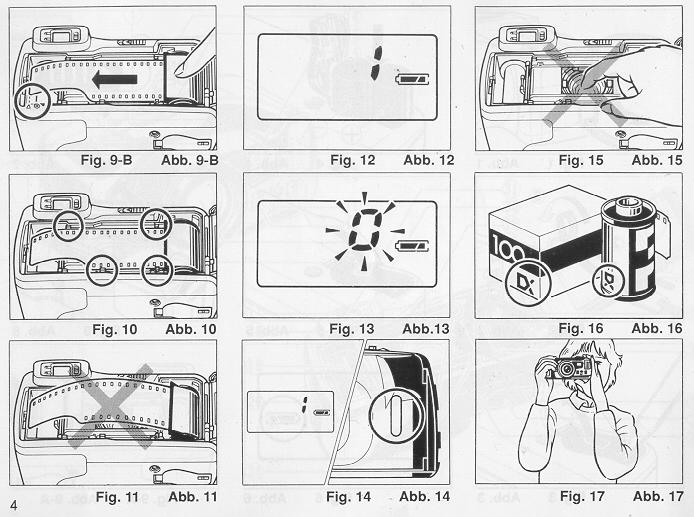
3. Make sure the film stays within the Film Guides and lies flat. (Figs.
10, 11)
4. Press the Back Cover shut so that the Back Cover Latch returns
to its original position. The film is automatically advanced until number "1"
appears on the LCD Panel. (Fig. 12)
5. If the film has not advanced correctly
and is not taken up onto the Film Take-up Spool, the Exposure Counter will blink
(Fig. 13), and the LCD Panel will not show that the film has advanced to frame
number "1", as mentioned in the step 4. The shutter release will also lock,
so you cannot take a picture until the film is loaded properly.
Reload the film by following steps 1 - 4 shown above.
* You can confirm
if there is film in your camera or not by observing the Film Loaded Window or
the Exposure Counter on the LCD Panel. (Fig. 14)
* You can confirm that
the film-wind or rewind is working properly by observing the changing of the
frame numbers on the LCD Panel.
* You can load film in your camera even
when the Power Switch is OFF However, the loading sign will disappear after
5 sec.
* Do not touch the inner lens with your fingers or the edge of
film. (Fig. 15)
SETTING THE FILM SPEED
DX-coded film cassettes have black-and-silver
patterns corresponding to film speeds that the camera reads and automatically
sets. Your camera accepts OX films with speeds ranging from ISO 64 to 3200.
Before loading your film, please check whether the cassette is DX-encoded or
not. (Fig. 16)
When using DX-coded films, seeing the film speed is not
necessary. Your camera automatically sets the correct film speed.
When
using a film without OX code, your camera will automatically set itself to ISO
100.
HOLDING YOUR CAMERA
1. Always use both hands to steady
your camera. (Fig. 17)
* When holding the camera vertically always position
it with the flash at the top. (Fig. 18)
* Be careful not to place your
fingers over the lens, flash or focusing windows. (Fig. 19)
VIEWFINDER
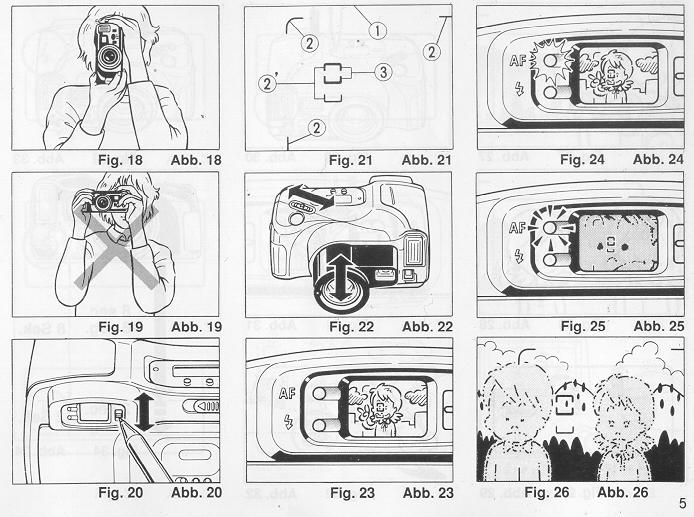
Visibility Adjustment
Finder visibility can also be adjusted
to give a clear image for the long and short sighted.
1. Move the Visibility
Adjustment Lever on the side of the finder up and down until the image is clearest.
(Fig. 20)
(1) Field of View Frame (Fig. 21)
The subject (such as people or scenery) you wish to photograph should be
set within this frame.
Parallax Correction Marks (Close focusing)
When taking a picture of a subject that is between 0.7m -1.2m (2.3 - 3.9ft.)
away from your camera, the subject should be positioned within these marks.
Then, adjust the focus to the subject using the Auto Focus Frame (2)'
Auto-Focus Frame
The auto-focus system focuses automatically
on any subject that appears within this small frame.
ZOOMING THE LENS
The built-in 35 - 1 05mm zoom lens lets
you get more in the picture, or closer to your subject without changing your
position. This allows you to easily select the composition that best suits your
subject.
To zoom the lens, just slide the zoom switch (Fig. 22) in either
direction until your subject is framed properly.
* When zooming the lens,
keep your fingers away from the moving lens components.
* When switching
the camera's Power MULE the lens will return to its storage position automatically.
* After about 3 minutes of inactivity, the lens will return to the wide-angle-position
and the display on the LCD panel will disappear.
AUTO-FOCUS SHOOTING
1. Set the subject you wish to take within the Auto Focus Frame in center
of the Viewfinder. (Fig. 23)
2. When you press the Shutter Release Button
halfway the AF Monitor will light up. (Fig. 24) If the subject is closer than
0.7m (2.4ft.) the AF-Monitor will blink and the shutter will lock. (Fig. 25)
3. Gently press the Shutter Release Button down to take the picture. The
film will advance automatically as soon as the Shutter has been released.
* Under extreme close-up conditions, the AF Monitor may not warn when you
are too close to the subject. Therefore, make sure the subject is at least 0.7m
(2.4ft.) away from the camera.
* Avoid pressing the Shutter Release Button
too abruptly to avoid camera shake or possible mis-operation.
* Be careful
not to accidentally cover the Distance Measuring Windows at the front of your
camera, as this will cause incorrect focusing.
* Keep the Distance Measuring
Windows clean to ensure accurate focusing. If they get dirty, they should be
wiped clean with a cotton swab or soft cloth.
* The AF system uses an
actual image of the subject to focus properly. Under low light conditions, an
assist beam will automatically light momentarily to provide a bright target
for the AF system to see.
* There may be rare cases when accurate focusing
is difficult or impossible. (For instance, with dark subjects that do not reflect
light well, completely uniform subjects, or subjects taken under low light conditions
through glass.) In these cases, it is best to use the Pre-Focus technique (see
page 20) to "lock" the focus on a more "normal" subject at the same distance.
While holding focus, turn your camera back to the original subject and shoot.
(See PREFOCUS SHOOTING for more details.)
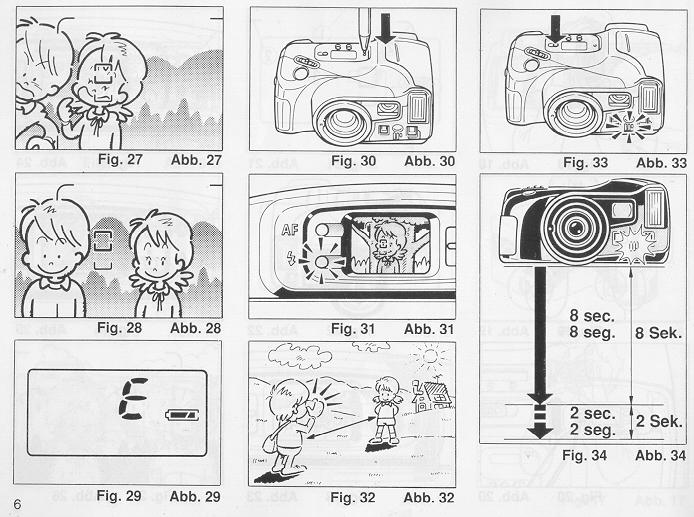
PRE-FOCUS SHOOTING
When the subject you wish to focus
on is not located within the Auto-Focus Frame or is difficult to focus on, you
should use pre-focus shooting.
When the subject is not within the Auto-Focus
Frame:
1. For example, to photograph two or more people, there may be cases
where none of your main subjects will be within the Auto-Focus Frame in the
center of the Viewfinder. If you release the shutter then, only the background
will be in focus, and the people, who are the main subject, will be out-of-focus.
(Fig. 26)
2. Move the camera to one side so that one of the people is
within the Auto-Focus Frame.
Press the Shutter Release Button halfway
so that the AF Monitor lights up. Keep holding your finger halfway down on the
Shutter Release Button. (Fig. 27)
3. Now return the camera to its original
position so that your main subjects are in the Field of View Frame again, and
press the Shutter Release Button fully to take the picture. (Fig. 28)
When the subject is difficult to focus on:
1. When you are photographing
subjects that are difficult to focus on (such as a black dog or a uniform surface),
find another subject with visible contrast at the same distance from the camera.
You can prefocus on that subject in the same way as described above.
* If you are shooting through a window under low light conditions aim the camera
at a slight angle to the glass to minimize any direct reflection of the autofocus
assist beam.
* When you remove your finger from the Shutter Release Button,
the pre-focus setting is cleared, so that you can pre-focus again as many times
as you wish.
REWINDING THE FILM (AUTO REVERSE)
1. After the end of
the film has been reached, the film will automatically rewind.
2. Film
rewinding is indicated by the frame counter counting backwards.
3. When
the film is fully rewound, the motor stops automatically and "E" is displayed
on the LCD Panel. (Fig. 29) Open the Back Cover to unload the film.
*
If you wish to rewind the film before reaching the end of the film, push the
Manual Film Rewind Button with a pen, etc. (Fig. 30)
* If you push this
button when the film is being rewound, the rewound film will still leave part
of the film leader extended out of the film cassette. (You may push the film
completely back into the cassette to avoid accidentally reloading it again at
a later time.)
* The shutter release is locked when "E" is displayed.
* When removing film, be careful not to touch the inner lens surface with
your fingers or the edge of film
FLASH PHOTOGRAPHY
1. Whenever the camera is turned on, the flash immediately charges. Then,
whenever additional light is required, the built-in Flash automatically activates.
* Recommended Flash Shooting Range
|
(ISO 100)
Telephoto: 0.7m- 3.5m (2.3ff.-11.5ft.)
Wide angle: 0.7m - 5.5m (2.3ft. - 180ft.)
|
(ISO 400)
Telephoto: 0.7m - 7.1m (2.3ft. - 23.3ft.)
Wide angle: 0.7m -11.0m (2.3ft. - 36.1ft.)
|
2. When the flash is still charging, the Red Flash Monitor will blink. (Fig.
31) Wait until the RED-LCD turns off in order to use the flash.
* When
the flash is used, there may be cases in which your subject's eyes appear red
in the finished photograph. This occurs when the retina reflects the flash light,
although the intensity of the phenomenon differs for each individual as well
as subject distance and how light or dark the picture taking environment is.
To minimize the red eye effect, select the Red Eye Reduction mode discussed
on page 24.
AUTO BACKLIGHT CONTROL/AUTO FILL FLASH
When taking pictures of backlit subjects, important details are often lost
in the shadows. The Mira Zoom 3 automatically compensates for these lighting
situations. If the subject is backlit and is about 4.5 meters (1 5 ft.) or more
from the camera Auto Back-Light Control (ABLC) will be activated to increase
over-all exposure. If the subject is about 4.5 meters (15ft.) or less from the
camera, the flash activates automatically and the shadows are lightened up using
automatic daylight fill-flash. Thus with backlit subjects, natural-looking pictures
can be taken easily and automatically (Fig. 32)
USING THE SELF-TIMER
1. Compose your picture with the camera on a steady support.
2. Press
Self-timer Button. The Self-timer LED on the front of the camera will light
steadily for approximately 8 seconds. Then the LED will blink for about 2 seconds
to indicate that the shutter is about to release. After a total of about 10
seconds have elapsed, the shutter will release. (Figs. 33, 34)
* If you
wish to stop the self-timer once it has started, slide the Power Switch ON or
press the Self-timer Button again.
Using the Self-timer for Flash Photography:
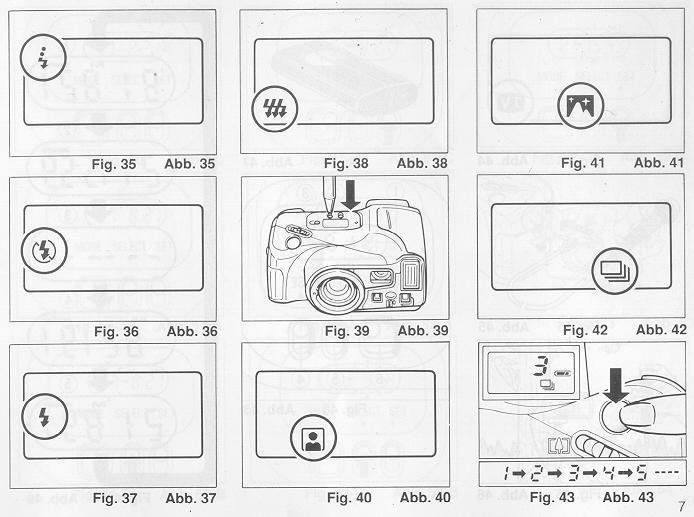
a. When the Self-timer Button is pressed the built in Flash will fire automatically
whenever there is insufficient light.
b. The flash will charge during
the 10 sec. countdown.
* You may not be able to activate the self-timer
when the flash is just beginning to recharge. Wait 2-3 seconds and try again.
* If the distance between subject and camera is too close, the AF Monitor
will blink. At that time, the self-timer will not activate. Move back a little
and try again. (See page 19 for more information regarding Autofocusing.)
* Too-Close Warning Lamp (AF Monitor) will blink only when pushing Self-timer
Button and/or the Shutter Release Button.
Using the Self-timer
for Pre-focus Photography:
a. Select the subject you wish to
pre-focus on. Move the camera so that it is in Auto-Focus Target.
b.
Press the Shutter Release Button halfway down to adjust and lock-in the focus
and reposition the camera if necessary.
c. While holding the Shutter
Release Button halfway press the Self-timer Button to activate the self-timer.
d. The focus will remain fixed at the locked-in distance until the photograph
is taken.
Taking Two Self-Timer Pictures
The
Mirai Zoom 3 will take two self-timed shots-one after another-when the self-timer
is used in conjunction with the continuous shooting mode (See page 27).
FLASH MODES
Flash Mode Button
In addition to fully automatic
flash photography, this camera also has a number of built-in creative flash
photography modes.
1. Switching to each flash mode is done by pressing
the Flash Mode Button so that the mark for the selected mode is displayed on
the LCD Panel.
2. In order to cancel any selected mode, press the Flash
Mode Button one or more times to erase the mode indicator on the LCD Panel,
and enter the normal automatic flash photography mode.
The selection of creative flash modes are done in the following order.
Auto flash mode (No LCD indicator)

 |
Auto flash red-eye reduction mode
3
 |
| FLASH-OFF mode
|
| FLASH ON mode
|
Multi-flash mode

|
RED EYE REDUCTION MODE
Minimizing the Red-Eye Effect
Selecting this mode
makes it possible to minimize the red-eye effect that sometimes occurs when
taking portrait photographs with flash. This makes it easy for anyone to take
natural-looking portraits of people.
1. Press the Flash Mode Button until
the
 symbol appears on the LCD Panel. (Fig. 35)
2. Press the Shutter Release
Button. The flash system will begin its pre-flash cycle. After a brief delay,
the main flash will fire. The entire sequence will take about one second.
* Be sure to hold the camera still after pressing the Shutter Release Button.
* You may wish to advise your subjects to wait for the second flash.
* This
mode does not cancel when the camera is switched off. (All other flash modes
will cancel and return the Camera to full Automatic flash.) To cancel this mode,
press the mode button again for any other selection.
Reducing Flash Output
The flash adjusts the flash brightness to prevent excessively overexposed
pictures when photographing, for example, female subjects with light skin at
close range. This function works similarly in any of
red eye reduction mode,
 flash-on mode, and auto flash mode.
FLASH-OFF MODE
This mode forcibly prevents automatic firing of the flash, thus allowing available
light photography in museums, churches, etc. where flash photography is prohibited.
1. Press the Flash Mode Button until the
 symbol appears on the LCD Panel. (Fig. 36)
2. Press the Shutter Release
Button and the shutter will be topped without flash (the minimum shutter speed
is approx. 1/4 second).
* To cancel this mode, press the Flash Mode Button
until there is a different mode symbol (or none) on the LCD Panel, or slide
the Power Switch OFF.
FLASH-ON MODE
This forcibly
trips the flash when you want to photograph subjects with sunlight to their
side or back. It lets you take more natural looking pictures by softening (filling
in) harsh shadows.
1. Press the Flash Mode Button until the
symbol appears on the LCD Panel. (Fig. 37)
2. Press the Shutter Release
Button. There will now be a flash every time the shutter is tripped.
* The camera will follow a daytime SYNCHRO-Sunlight Exposure program in cases
of bright light.
* The camera will go to slow synchro photography in
cases of dim light.
* To cancel this mode, press the Flash Mode Button
until there is a different mode symbol (or none) on the LCD Panel, or slide
the Power Switch OFF.
MULTI FLASH MODE
The flash can be used for high-speed multi-flash, strobe-effect photography.
The resulting picture will include four separate "frozen" images of a moving
subject.
1. Press the Flash Mode Button so that the
 mark is displayed on the LCD Panel. (Fig. 38)
2. When pressing the Shutter
Release Button, 4 closely-spaces flashes will fire during the approximately
1/6 second that the shutter is open.
* To cancel the mode, press the
Flash Mode Button to erase
mark from the LCD Panel, or set the Power Switch to OFF
CREATIVE
MODES
This camera includes a variety of special operating modes
which permit you to easily express your creativity. These modes include Auto
Zoom, Night Panoramic Photography, Continuous Shooting and TV.
You can
also combine these selections with the flash photography modes, self-timer,
and/or remote control picture taking to fully and precisely obtain the image
you seek. Try experimenting. These modes are designed to stimulate your imagination
and creativity.
* To select these operating modes, simply press the Mode
Button. (Fig. 39)
Confirm that the desired feature mode is in effect
by checking the LCD Panel which displays the current feature mode. The symbols
used for these modes are listed below. For detailed operation of each mode,
refer to their respective sections in this manual.
Selection
of the photography modes is done in the following order.
| Fully Automatic shooting (No symbol
on LCD panel) |
|
| Auto zoom mode |
 |
| Night Panoramic photography mode |
 |
| Continuous shooting mode |
 |
| TV mode |
 |
AUTO ZOOM MODE
Use this mode to obtain photographs with a constant image size, even when
the distance to the subject's changes.
1. Press the Mode Button until
the
symbol appears on the LCD panel. (Fig. 40)
2. Press the Shutter Release
Button. The Zoom operates automatically, and the shutter will be released.
* This mode does not cancel when the camera is switched OFF. To cancel this
mode, press the Mode Button until the LCD panel shows a different mode symbol
(or none).
NIGHT/PANORAMIC PHOTOGRAPHY MODE
The Night Panoramic
Photography mode lets you easily shoot breathtaking evening panoramas using
only natural illumination.
1. Press the Mode Button until the
symbol is shown on the LCD Panel. Then, press the Shutter Release Button to
take a picture. (Fig. 41)
* The lens will be focused at infinity.
* Exposure times may be as long as 2 seconds.
* To use the self-timer in
this mode, press the Mode Button until the camera is set to the Night Photography
Mode, then press the Self-timer Button. Using a tripod, or other camera support,
and remote shutter release is recommended to prevent camera shake.
* To cancel
this mode, press the Mode Button until the LCD Panel shows a different mode
symbol (or none), or slide the Power Switch OFF
* Always use a tripod, or
other steady support to avoid camera shake. Use of a remote shutter release
is recommended.
* When using this mode in daylight, the Scenery Mode
will be activated and the focus set to A, and the exposure will be set to automatic
exposure.
CONTINUOUS SHOOTING MODE
This mode
allows you shoot continuously as long as the shutter is pressed.
You
can accurately capture the action of car races, competitive sport events, and
even the movements of an infant without missing any important moments.
1. Press the Mode Button to set your camera to the Continuous Shooting Mode.
Confirm that the
mark appears on the LCD Panel. (Fig. 42)
2. Press and hold down the Shutter
Release Button. Your camera will continuously take pictures at a rate of one
frame per second as long as the Shutter Release Button is held down. (Fig. 43)
* The Autofocus system will refocus (on subjects within the AF target) for
each exposure.
* To cancel the Continuous Shooting Mode, press the Mode
Button again until the mode marks go off or slide the Power Switch OFF.
Combining the Continuous Shooting Mode and the Self-timer:
1. Set your camera to the Continuous Shooting Mode.
2. Press the
Self-timer Button. Your camera will wait 10 seconds, then shoot two sequential
frames.
Combining the Continuous Shooting Mode and the Flash:
1. Set the camera to the Continuous Shooting Mode.
2. Press the Shutter
Release Button.
3. If the amount of light is insufficient, the Flash
Unit will activate automatically.
4. After the Flash fully charges, press
the Shutter Release Button to make the exposure.
5. Continue shooting
by holding down the Shutter Release Button. Your camera will automatically make
another exposure each time the Flash charges.
* Continuous firing of
the flashing may cause the battery and the camera to heat up. If this occurs,
do not use the flash for a while to allow it to cool down.
TV
MODE
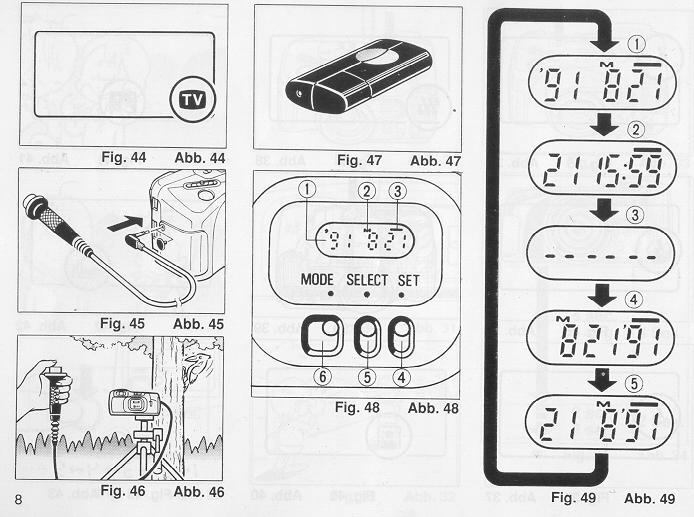
Use this mode to record computer graphics or video images from
the screen of a computer monitor or television.
1. Press the Mode Button
until the
symbol is displayed on the LCD Panel. (Fig. 44) Place the camera on a steady
support and take the picture.
* The Flash will not activate in the TV
Mode.
* For TV Mode photography, slow-moving TV images will usually turn
out clearer than fast-moving ones. Using a tripod and electronic cable release
is recommended to prevent camera shake.
* To use the self-timer in this
mode, press the Mode Button until the camera is set to TV Mode, then press the
Self-timer Button.
* To cancel this mode, press the Mode Button until
the LCD Panel shows a different mode symbol (or none), or slide the Power Switch
OFF.
ELECTRONIC REMOTE CONTROL SOCKET
This camera is equipped with an Electronic Remote Control Socket. You can
trip the shutter remotely in various ways by plugging an (optional) infrared
sensor, audio sensor, remote controller, etc., into this socket. A 50cm (19.7
inch.) Electronic Cable Release cord, and a 10m (33ft.) extension cord, are
also available from Ricoh as options for use in remote control photography.
Typical Installation
1. Insert the plug of the Electronic
Cable Release or Remote Controller to the Electronic Remote Control Socket.
(Fig. 45) An extension cord can be used for taking photographs at a distance
from subjects.
2. Using a secure support, aim the camera at the subject
and gently press the remote controller button. (Fig. 46)
* Before inserting
or pulling out a cord into/from this socket, shut the power OFF If the power
is ON, the shutter might accidentally be released.
Optional Wireless
Remote Controller RC-10
The separately sold Wireless Remote Controller RC-10 allows you to easily
use remote control photography (Fig. 47)
(OPTIONAL) DATABACK SETTINGS
|
Nomenclature of the date imprinting feature
(Fig. 48)
(1) Display panel
(2) Month indication
(3) Imprint mark
(4) Set button
(5) Selector button
(6) Mode selector button
|
Imprinting mode
Examples of date imprinting (Fig. 49)
(1) 1991 July21st
(2) 21st 15:59
(3) No imprinting
(4) July21st, 1991
(5) 21stJuly, 1991
The date imprinting mode can be divided into 5 types: date, time,
and no imprinting.
|
Selecting imprinting mode (Fig. 49)
Each time the Mode selector button is pressed, the display changes as shown
below.
(1) Date (Year/month/day)
(5) Time (Day/hour/minute)
(3) No imprinting
(4) Date (Month/day/year)
(5) Date ( Day/month/year)
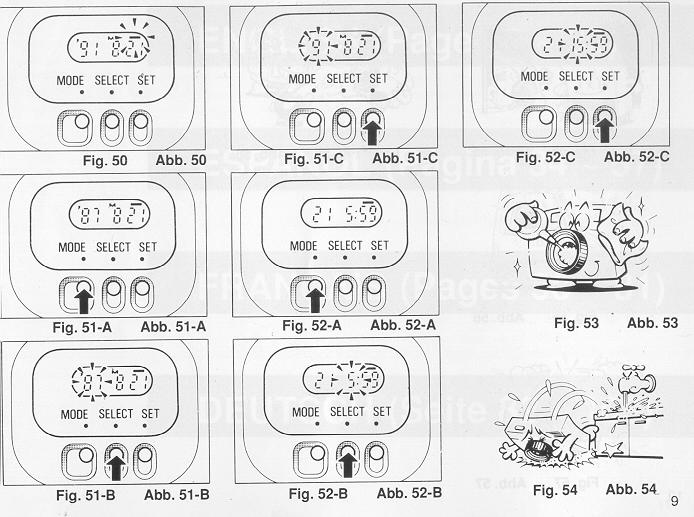
Checking imprinting (Fig. 50)
After shooting, the imprint mark-flickers in the display panel for a few seconds
for correct imprinting. The mark and the letter ''M'' are not imprinted on the
picture.
Resetting the date and time (Figs. 51 A - C)
1. Each time the Selector button is pressed, the flashing digits change in the
order of year, month, day, hour, minute and colon(:). 2. When the digits to
be reset flash, press the Set button until the desired digits appear. When the
Set button is kept pressed, the digits change rapidly.
Accurately
seeing seconds (Figs. 52A - C)
1. Press the Mode selector button
for Time display mode.
2. Press the Selector button so that the colon(:)
f lickers.
3. Press the Set button according to the radio or telephone time
signal. The time count starts from 0 seconds.
* It is recommended that the
second digits be adjusted after adjusting the minute digits.
Battery Replacement
The date/time function draws power from the
camera battery. For detailed information on the battery, refer to the page 15.
When replacing the battery, if the display does not blank out, setting the date
and time after battery replacement is not necessary But if there is nothing
on the display, set the date and time after installing new battery.
Note
that even when the battery is removed, the display data will still be retained
for several minutes.
Notes on date imprinting feature
* At temperatures below
0 C (32 degrees F), the battery performance deteriorates. The date imprinting
feature may not function correctly and imprinting may become impossible.
* When the battery is replaced, the display panel sometimes shows wrong
digits. Reset the digits for correct indication.
* The date is
sometimes illegible if it is imprinted on the following objects.
(1)
"Warm"-colored objects, such as red, yellow, orange, etc.
(2) Objects
with details similar in size to the imprinted date (gravel, leaves, etc.)
(3) Objects of high luminance (sky, white wall, etc.)
* Imprinting
is not possible in the following modes.
(1 ) Print off mode
(2) Reset mode
(3) Battery check display mode (The display panel flashes.)
PROPER CARE OF YOUR CAMERA
* If there is dirt on
the lens or Distance Measuring Windows and in the camera body, do not attempt
to remove it with your fingers. Use a blower to blow the dust away, or wipe
the surface gently with camera lens tissue or a soft cloth. (Fig. 53)
* Camera malfunction can be caused by impact humidity, salt etc. After using
the camera at the beach or places where there is salt spray, high humidity or
chemicals, wipe it off carefully. (Fig. 54)
* Take care not to expose
the camera to sudden changes in temperature, as they may cause condensation
on the lens and inside the body, or other malfunctions. (Fig. 55)
* Do
not expose the camera for a long period of time to extremely high temperatures,
such as in your car or on the beach, as this may ruin your film, or cause other
malfunctions. (Fig. 56)
* When using a tripod, do not try to force a
long screw into the socket. The screw length should be less than 5.7mm (1/4
inch.). (Fig. 57)
* Do not place the camera near equipment that has strong
magnetic fields such as a television or radio. (Fig. 58)
MAJOR SPECIFICATIONS:
Type: 35mm autofocus
lens shutter compact camera.
Lens: 35mm f/3.8 - 105mm f/7.5 zoom lens with 11 elements
in 9 groups.
Focus: Passive (SLR-type) verified automatic focusing covering
0.7m (2.3ft.) to Infinity. Focus Lock available.
Shutter:
Programmed electronic shutter with speeds from 1/4 to 1/500 sec.; 2 sec. in
the Night Mode.
Viewfinder: Polo minor-type zoom viewfinder. Visibility
adjustment possible.
Exposure Adjustment: Dual SPD photocell reading through
zoom viewfinder.
Exposure Coupling Range: EV 6 - 17 (ISO 100)
Film Speed: ISO 64 - 3200. Compatible with the DX code system.
(Non-DX film is set at ISO 100.)
Film Advance/Rewind: Automatic film advance with built-in
motor, and automatic 1st frame setting. Automatic film rewind at the end
of the roll, or mid-roll rewind.
Exposure Counter: Additive, counts down during film rewind.
Film Loading: Ricoh Auto load system with electronic sprocket
less drive.
Built-in Flash: Electronic flashmatic system. Automatic
flash in dim light.
Flash Modes: Full Auto Flash, Pre-flash for red eye reduction,
Flash-on/off, Soft flash at less than 1.2m (3.9ft.), Multi Flash Mode.
Flash recycling: Approximately 3 sec.
Backlight
Shooting: Daylight Fill-in Flash at less than 4.5m (14.8ft.), or automatic
exposure compensation (+2EV) at 4.5m or more.
Creative Shooting Modes: Auto Zoom Mode, Night Mode, Continuous
Mode, TV Mode, Self-Timer Mode.
Battery Capacity: 25 rolls with 24 frames each (using flash
for half the exposures). Battery power check on LCD Panel.
Self-Timer: Built-in electronic LED indicator type. Delay
of approximately 10 sec.
Power Source: 6 volt lithium battery (CR-P2P, DL 223A, K223LA
or equivalent).
Data Back: (optional): Data Back version available.
Dimensions: 143mm (W) x 65mm (H) x 79mm (D) (5.6in. x 2.6in.
x 3.1in.)
Weight: 510g (18oz.) (without battery)
* Specifications
are subject to change without notice.